 MIDILLI Tech
🌀 Introducing Automation in MIDILLI Configurator
Rhythmically Reactive. Precisely Timed. Wildly Creative.
MIDILLI Configurator gives you a powerful way to build time-based interactions between your buttons, banks, and MIDI messages — all through its Automation system.
This post is part of a quick, yet comprehensive guide (QCG) series by MIDILLI.
🎛 What Is Automation?
In MIDILLI, Automation means triggering predefined sequences of actions in time — either with millisecond-precision intervals or synced to beats per minute (BPM). It allows you to:
Send MIDI messages
Change banks
Trigger notes, CCs, or SysEx
... all based on button events and tempo-based timing
🔘 Button-Driven Automation
You define what happens when a button is:
Pressed
Released
Toggled
Triggered (pulse)
...or both pressed & released (read more on this).
Each of these can start an automation that:
Sends MIDI messages at timed intervals
Changes banks after a delay or on a loop
Triggers sequences across your devices
And it works across all supported protocols: USB, BLE, or MIDI Out.
🕒 Tempo-Aware MIDI Control
Need to sync actions with a groove? Automation supports:
BPM-based timing: Define steps in beats
Tap tempo: Assign one or more buttons to set the tempo
Auto clock generation: Use automation to send a MIDI clock and drive external devices
Perfect for:
Creating evolving MIDI patterns
Switching layers in time with your song
Building tempo-synced control surfaces for live performance
🔄 Example Use Cases
Press a button → send a Note On, wait 500ms → change bank, send another message
Use 2 buttons to tap the tempo → automation sequences adjust timing in real time
Toggle a button to start/stop a clock-generating sequence, or clips
Trigger evolving MIDI CCs or SysEx commands at rhythmic intervals
🚀 With Automation, MIDILLI becomes more than a device — it becomes a time-based MIDI engine, reactive to performance and smart in timing.
🎚️ Try it out today and bring motion and structure into your MIDI world.
👉 Read the Full Automation Manual
🛠 How to Enable Automation
Getting started with Automation is easy and can be set differently for each bank:
Select a button inside a bank.
Define the MIDI action you want (e.g., send CC 90 ranging between 0 and 127).
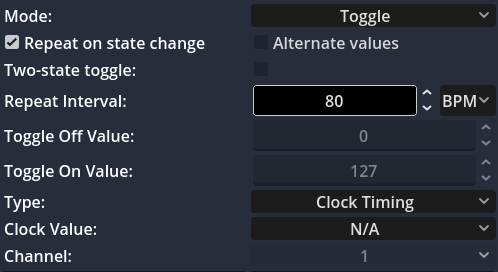
Check the "Repeat" checkbox to enable automation. You can make it react on Hold or Toggle On, depending on the button mode.
Set the Repeat Interval, either in milliseconds or beats per minute (BPM).
Optionally enable "Alternate values" to send both the minimum and maximum value in succession with a single press.
Do not forget to switch to the original bank if you are using bank change for automation.
⚠️ Tip: Avoid setting the repeat interval too fast to prevent overwhelming the MIDI buffer.
You can also assign a button to tap tempo, allowing real-time tempo control of automations and MIDI clock sync.
📸 Below is a screenshot showing how to set a tempo after button toggled on at 80 BPM:
Want more tips like this?
📩 Subscribe to our newsletter and get controller design ideas, MIDI tricks, and workflow inspiration straight to your inbox. Read our privacy policy.